| Symantec backup policies and config backup |
Wednesday, 28 October 2015
Symantec Backup Exec Config Backup (exporting)
How to take or export Symantec Backup Exec Config file backup and restore it back on to Symantec backup Exec
If you want to export Symantec backup policies and config backup, you can copy the entire data folder from the backup Exec installation directory to the some other location. Later on you can restore this by overwriting it to the 'data' folder. After replacing the new data folder with the old data folder, restart the backup exec services. It should bring all your jobs and configuration back.
DATA folder Path - "C:\Program Files\Symantec\Backup Exec\data"
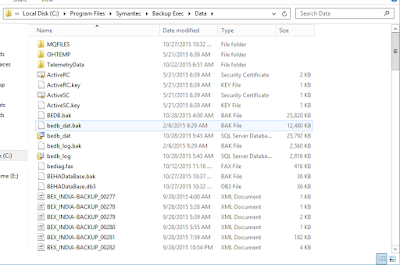
Note - To copy data folder you need to stop sqlserver (backupexec) service from services.
Posted by Amit Kumar at
18:30 No comments:
Email ThisBlogThis!Share to TwitterShare to FacebookShare to Pinterest
Labels: In English
Monday, 26 October 2015
Cannot Start Microsoft Office Outlook Cannot Open the Outlook Windows
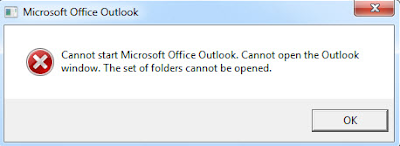
Outlook is giving error - Canot start Microsoft Office Outlook. Cannot open the Outlook window. The set of folders cannot be opened. The file C:\Users\....xyz.pst can not be opened.
or
Canot start Microsoft Office Outlook. Cannot open the Outlook window. The set of folders cannot be opened.
How to fix Solved Out look Error "Cannot start Microsoft Outlook. Unable to open Outlook window" error
When I got this error in outlook 2013, i had to reboot outlook. Sometime it worked and sometime it did not. Finally i found one another solutions which permanently resolve issue and i was not required to reboot anymore:-
Try this might work for you :-
| Microsoft Office Outlook Error |
Step 1 :- Click on Start button
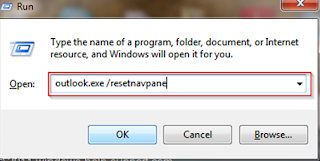
Step 2 :- Type outlook.exe /resetnavpane in search box and press enter or you can open run and type this command in the box -
outlook.exe /resetnavpane command |
It will reset the Navigation Pane settings and then open Outlook without error..
Posted by Amit Kumar at
13:07 No comments:
Email ThisBlogThis!Share to TwitterShare to FacebookShare to Pinterest
Labels: In English
Sunday, 18 October 2015
What is Solid State Drive SSD vs. HDD: What's the Difference In Hindi
In Hindi -What is Solid State Drive
SSD vs. HDD: What's the Difference
Solid-state drive (SSD) को सॉलिड स्टेट डिस्क भी कहते है जबकि इसमे न ही कोई मोटर होती है जो की डिस्क को स्पिन कर सके, यहाँ तक की इसमे कोई डिस्क ही नहीं होती है| यह एक nonvolatile storage device है that stores persistent data on solid-state flash memory | Solid-state drive (SSD) एक Solid State storage होती है जो की डेटा स्टोरेज की लिए integrated circuit assemblies को memory की तरह use करती है |
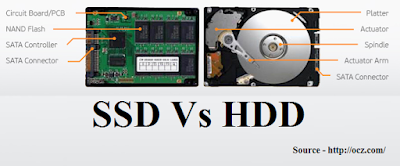
| SSD vs HDD |
पुरानी हार्ड ड्राइव (HHD) की तुलना मे SSD मे array of semiconductor मेमोरी होता है जो की ICs को use करता है न की magnetic or optical storage मीडिया |
SSD मे read/write के लिए कोई moving (mechanical) parts नहीं होता है जबकि HHD मे read/write के लिए spinning disk एंड movable read/write head होता है |
In summary, electromechanical disk की तुलना मे, SSD ज्यादा फ़ास्ट होती है, physical shock के प्रति ज्यादा resistant होती है, silently work करती है, स्पीड ज्यादा होती है, latency and access time कम होता है So in short SSD disk is best performer compare to HHD.
अभी तक के टाइम मे HHD की प्राइस कम, स्टोरेज कैपेसिटी ज्यादा एवं easily अवेलेबल drive है जबकि SSDs work best if speed, ruggedness, form factor, noise, or fragmentation (technically part of speed) are important factors to you.
-----------------------------
Posted by Amit Kumar at
13:11 No comments:
Email ThisBlogThis!Share to TwitterShare to FacebookShare to Pinterest
Labels: Difference Between, In Hindi
Thursday, 15 October 2015
How to find out the MAC Address of my Laptop PC in Windows
Know MAC Address of my PC
How to find out the MAC Address of my Laptop PC in Windows 7 XP
-
First Method - IPCONFIG Command on command Prompt
Second Method - Getmac Command on command Prompt
Third Method - Check network adapter properties
First Method -
1. Click on Start- > Type "cmd" command
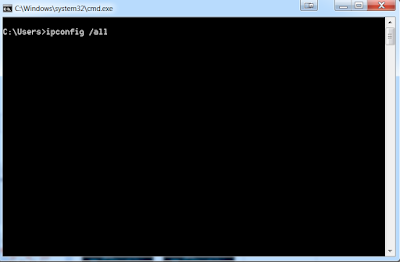
2. Type IPCONFIG /all - > It will show MAC ID/Physical ID of your PC/Laptop - (all adapters)
Second Method -
1. Click on Start- > Type "cmd" command
2. Type getmac command
Posted by
Amit Kumar at
09:33 No comments:
Email ThisBlogThis!Share to TwitterShare to FacebookShare to Pinterest
Labels: In English
What is TCP (Transmission Control Protocol) definition in Hindi
In Hindi - What is TCP/IP (Transmission Control Protocol)
TCP/IP (Transmission Control Protocol/Internet Protocol) इंटरनेट की एक बेसिक कम्युनिकेशन प्रोटोकॉल होती है | TCP/IP network मे TCP एक इम्पोर्टेन्ट एवं main प्रोटोकॉल होती है | IP प्रोटोकॉल केवल पैकेट्स से डील करती है जबकि TCP दो hosts के बीच कनेक्शन establish एवं डेटा को एक्सचेंज करती है | TCP ensure करती है की पैकेट जिस आर्डर मे भेजा गया है वो उसी आर्डर मे एवं efficiently डिलीवर हो |
TCP, IP प्रोटोकाल के साथ काम करती है जो की रिमोट होस्ट की लॉजिकल लोकेशन डिफाइन करता है | एक बार लॉजिकल लोकेशन पता होने के बाद TCP दोनों होस्ट्स के बीच connection establish करता है, बड़े पैकेट्स को छोटे छोटे पैकेट्स मे ब्रेक करता है एवं कनेक्शन को लाइव/एक्टिव रखता हुए ensure करता है की भेजे गए पैकेट्स की integrity बनी रहे means वो उसी तरह से डिलीवर हो जैसे की भेजे गए थे |
Internet Protocol, hosts को एड्रेस करने एवं सोर्स से लेकर डेस्टिनेशन तक एक या अधिक IP नेटवर्क मे route करने के लिए रेस्पोंसिबल होती है| जिसके लिए IP, पैकेट्स की फॉर्मेट डिफाइन करने के साथ एक एड्रेसिंग सिस्टम भी डिफाइन करती है जो की hosts को identify करने के साथ होस्ट्स की लॉजिकल लोकेशन भी डिफाइन करता है |
इंटरनेट पर use होने वाले बहुत सारी applications TCP को extensively use करती है जैसे की World Wide Web (WWW), E-mail, File Transfer Protocol, Secure Shell, peer-to-peer file sharing, और बहुत सारी streaming media applications.
Together, TCP and IP are the basic rules defining the Internet. TCP is defined by the Internet Engineering Task Force (IETF) in the Request for Comment (RFC) standards document number 793.
Posted by
Amit Kumar at
08:41 No comments:
Email ThisBlogThis!Share to TwitterShare to FacebookShare to Pinterest
Labels: In Hindi
Tuesday, 13 October 2015
Default login user name password dell tl 1000 tl2000 and tl4000
Default Login User Name Password for Dell TL1000 TL2000 and TL4000
Default Login User Name Password for Dell TL1000 TL2000 and TL4000 is admin / secure
Posted by Amit Kumar at
12:14 No comments:
Email ThisBlogThis!Share to TwitterShare to FacebookShare to Pinterest
Labels: In English
Friday, 9 October 2015
Fixed - Windows 7 Installation A required CD/DVD device driver is missing, usb installation
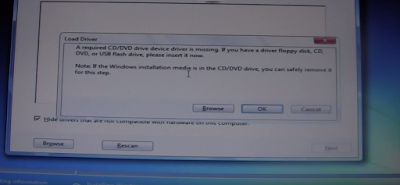
Fixed - A required CD/DVD device driver is missing. If you have a driver floppy disk, CD, DVD, or USB flash drive, please inset it now.
Windows 7 Installation
I was getting below error when trying to install windows 7 from USB drive- I checked all the things i.e changed USB, USB ports, bios setup, windows setup on USB but nothing worked-
| A required CD/DVD device driver is missing. If you have a driver floppy disk, CD, DVD, or USB flash drive.. |
Finally i did below which worked for me, i am sharing this which may help you....
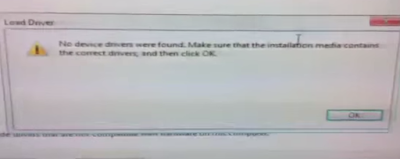
1. Click Cancel on the above message box - you will get below message - click OK..
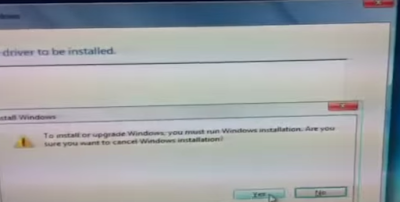
2. See below - Click "Yes" and then close this box...
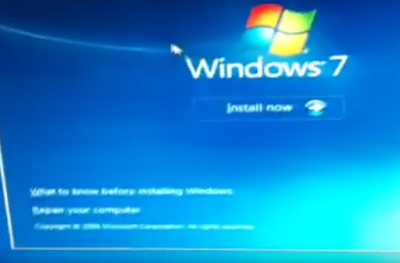
3. See below- You will come back on "welcome screen"
4. Now on welcome screen, remove your USB drive from your PC and insert back to other USB port. Now click Install again
Hope this will work for you and your installation will be normal. This worked for me....Try it
Posted by
Amit Kumar at
16:46 No comments:
Email ThisBlogThis!Share to TwitterShare to FacebookShare to Pinterest
Labels: In English, Windows Tips and Tricks
MBps Vs Mbps
In hindi -What is difference between MBps and Mbps
Compare MBps and Mbps
8 bits = 1 byte
1000 bytes = 8 kilobits (Kb) = 1 Kilobyte (KB)
1000 Kilobytes (KB) = 8 Mbps = 1 MBps
Mbps (Small "b") vs MBps (Capital "B")
Mbps: - megabit per second (Mbit/s or Mbps) डेटा ट्रांसफर की एक यूनिट होती है जो की 1,000,000 bits per second or 1,000 kilobits per second के बराबर होती है| 8 Megabits per second, 1 Megabyte per second (ie. 8 Mbps = 1 MBps) के बराबर होती है |
MBps :- Mega Byte per second (MByte/s or MBps) डेटा ट्रांसफर की एक यूनिट होती है जो की 1,000,000 bytes per second or 1,000 kilobytes per second, or 8 Megabits per second के बराबर होती है |
Posted by
Amit Kumar at
10:00 No comments:
Email ThisBlogThis!Share to TwitterShare to FacebookShare to Pinterest
Labels: In Hindi
What is USB 3.0 Speed
In Hindi - What is USB 3.0 and what is USB 3.0 Speed
Know speed difference between USB 3.0 and USB 2.0
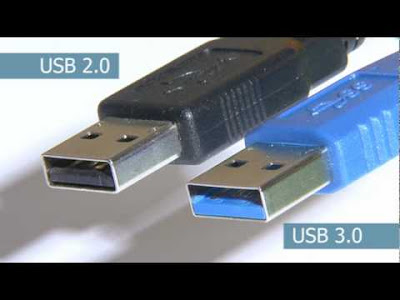
USB ka full form Universal Serial Bus (USB) होता है जो की कंप्यूटर एवं इलेक्टॉनिक डिवाइस को कनेक्ट करने का एक इंटरफ़ेस है | USB 3.0, USB का तीसरा version है इससे पहले USB 1.0 and USB 2.0 आ चुके है | USB 3.0 मे एक नयी ट्रांसफर मोड होती है जिसको super speed (SS) बोलते है , ये 5 Gbit/s (625 MB/S) तक डेटा ट्रांसफर केर सकती है | ये स्पीड USB 2.0 के तुलना मे 10 गुना ज्यादा है | USB 3.0 की तुलना मे USB 2.0 की स्पीड - 80 megabits per second (mbps), or 60 megabytes per second (MBps) होती है |
USB 3.0 के इंटरफ़ेस पर ब्लू कलर की coding strip होती है जिससे आप इसको पहचान सकते है |

USB Release Date -
USB 1.0 Jan 1996
USB 1.1 Sept 1998
USB 2.0 - April 2000
USB 3.0 - November 2008
USB 3.0 summary of the major changes:-
- SuperSpeed
- Dual-bus architecture
- Asynchronous instead of polled traffic flow
- Dual-simplex simultaneous bi-directional data flow
- Support for streaming
- Fast Sync —N-Go technology
- Support for higher power
- Better power management
Posted by
Amit Kumar at
08:43 No comments:
Email ThisBlogThis!Share to TwitterShare to FacebookShare to Pinterest
Labels: In Hindi
Thursday, 8 October 2015
How to Set Your Default Apps in Windows 10
You may have many files, apps, protocols and programs in windows 10 and windows makes it easy for you to open up these files by setting up default programs for each file type
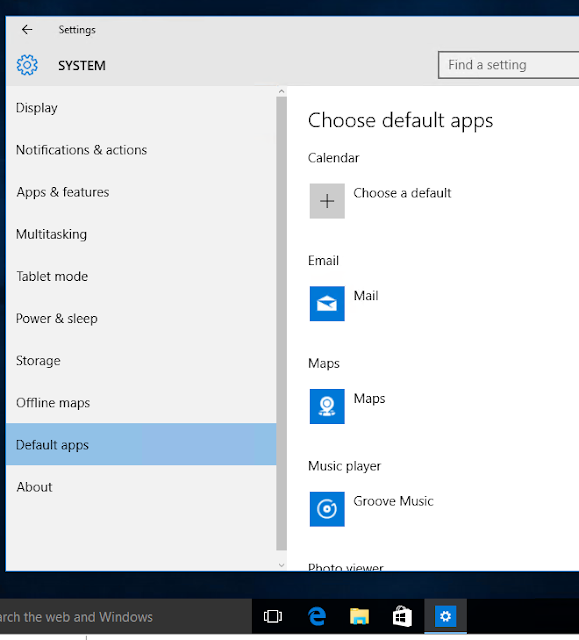
You can set default apps from -
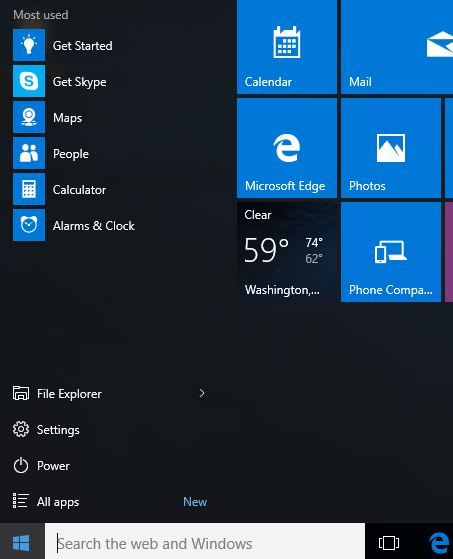
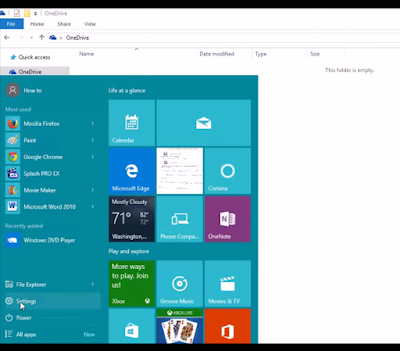
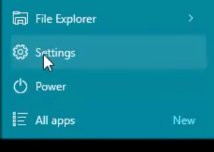
Click on Start - > Settings
Click on System - > Default Apps
Click on Default apps - >
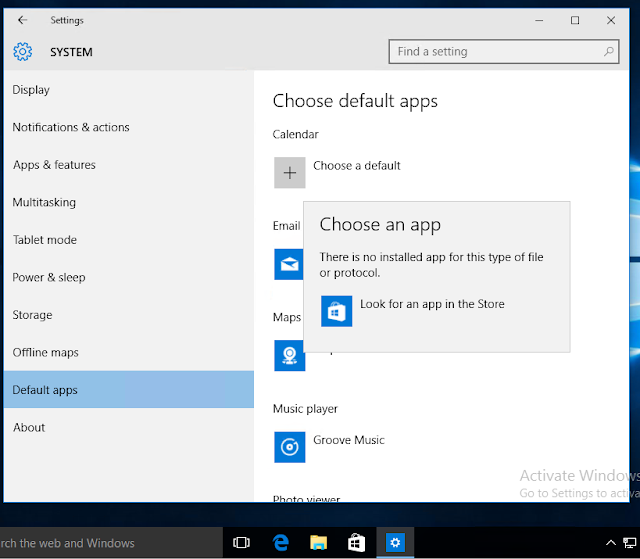
Click on + to add default apps
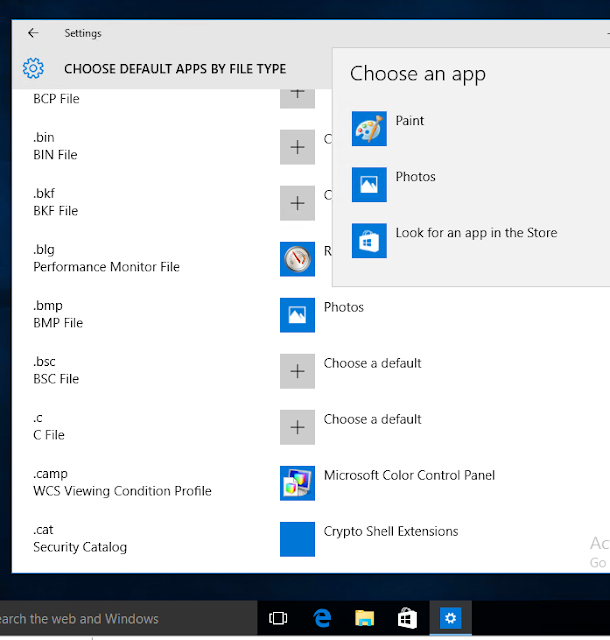
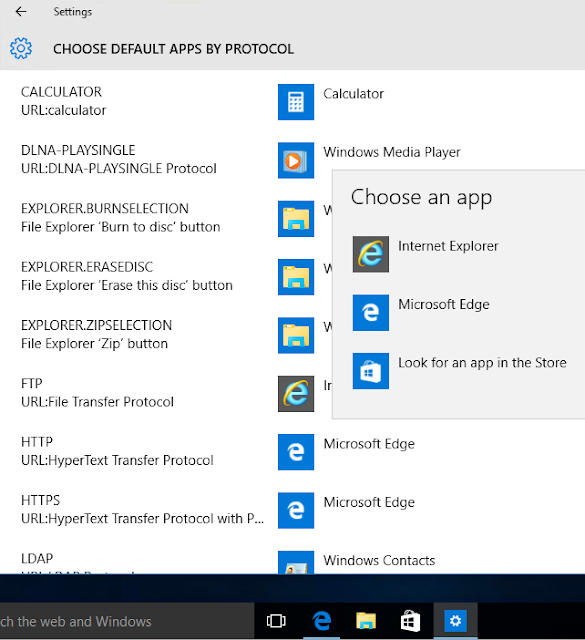
Now if you will scroll down, you will see three options, here you can choose your default app by file type or protocol type -
1. Choose default apps by file type - In the below example, you can associate .bmp file with paint, photos or with other application (by downloading from app store)
2. Choose default apps by protocol - In the below example you can choose IE or Edge with FTP Protocol...
3. Set default by apps - It will set default as per windows standard
--------------
Posted by
Amit Kumar at
15:16 No comments:
Email ThisBlogThis!Share to TwitterShare to FacebookShare to Pinterest
Labels: In English, Windows 10, Windows Tips and Tricks
how to change computer name in windows 10
How to change computer name in windows 10
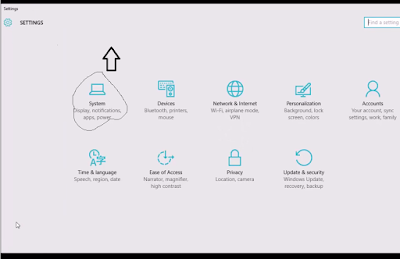
To change computer name / PC name in windows 10 - Click on Start Button - >
Select settings - >
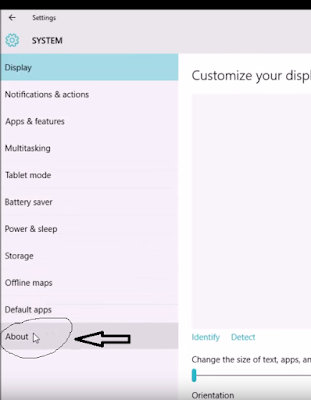
Select System ->
On the next window - Click about ->
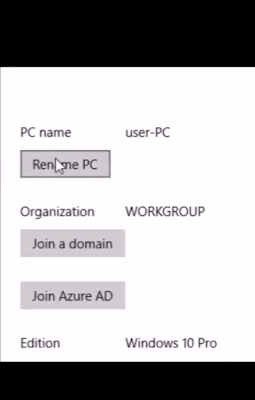
Click "Rename PC"
Type your new computer name and click next ->
-------------------------
Posted by
Amit Kumar at
09:02 No comments:
Email ThisBlogThis!Share to TwitterShare to FacebookShare to Pinterest
Labels: Windows 10, Windows Tips and Tricks
Wednesday, 7 October 2015
How to change windows 10 startup programs
How to add or remove, change startup apps programs in Windows 10
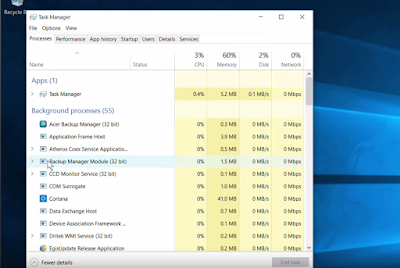
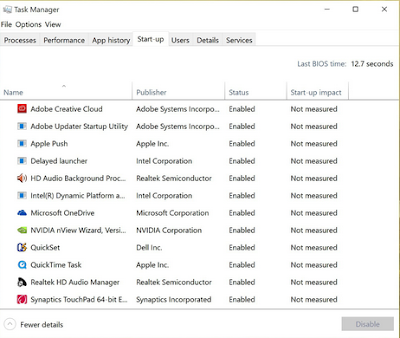
To open startup in windows 10, you can open task manger and then go to startup tab, see below - >
Just click on search box , type task manager ->
| Search Task Manager in Windows 10 |
Now click on Task Manager - >
| Open Task Manager in Windows 10 |
Go to Startup Tab in Task Manager - Here you will see all the apps and programs which are in the startup. You can disable or remove them from the list-
| Startup Tab in Task Manager - Windows 10 |
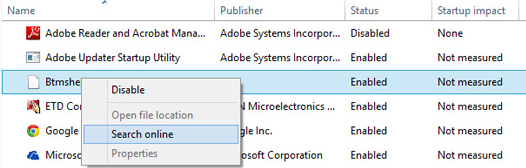
Now from the list you can select any program or app and right click - You will see disable option, use this if you want to disable this item from startup -
| Disable app program from startup |
----------------------
Posted by
Amit Kumar at
08:47 No comments:
Email ThisBlogThis!Share to TwitterShare to FacebookShare to Pinterest
Labels: Windows 10, Windows Tips and Tricks
Monday, 5 October 2015
how to enable ftp service in window 10 7
Install enable or activate ftp service in window 10, 8 and windows 7
To enable FTP service in windows -
Click on Start button
Click Control Panel
Click Programs.
Under Programs and Features
Click Turn Windows features on or off.
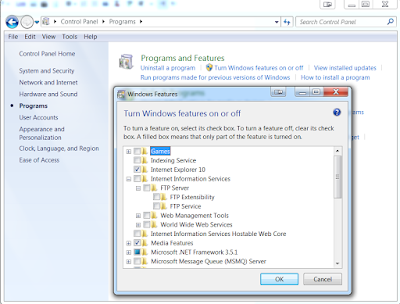
Windows Features dialog box, select IIS box.
Go to FTP Server - Select FTP service and OK
The installation might take several minutes.
See below-
| Enable FTP Service in Windows 7 10 |
Posted by
Amit Kumar at
09:49 No comments:
Email ThisBlogThis!Share to TwitterShare to FacebookShare to Pinterest
Labels: Windows Tips and Tricks
how to enable telnet in windows 7 8 10
Install enable telnet in windows 10
How to Activate /enable Telnet in Windows 7
Telnet is simple command based utility which allows you to connect with other computer or machine. By default, Telnet is not installed in Windows, and you need to manually install or activate it -
To install Telnet Client -
Click on Start button
Click Control Panel
Click Programs.
Under Programs and Features
Click Turn Windows features on or off.
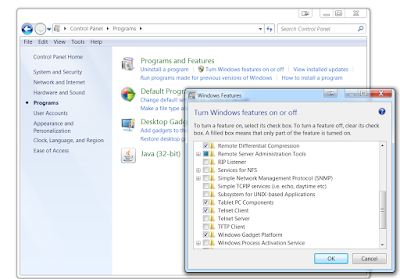
Windows Features dialog box, select the Telnet Client check box.
Click OK. The installation might take several minutes.
See below-
| Install telnet in Windows |
You can enable telnet in Windows 10 using same steps above.
Posted by
Amit Kumar at
09:26 No comments:
Email ThisBlogThis!Share to TwitterShare to FacebookShare to Pinterest
Labels: Windows Tips and Tricks
Netstat command windows popular command
In Hindi - What is Netstat command
Windows popular command
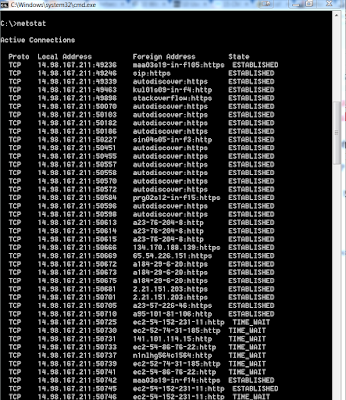
Netstat एक्टिव TCP कनेक्शंस, पोर्ट्स जिन पर कंप्यूटर एक्टिव है, ईथरनेट - IPv 4 (for the IP, ICMP, TCP, and UDP protocols) एवं IPv 6 स्टैटिक्स और IP routing table बताता है |
Without parameters के कमांड टाइप करने पर Active TCP connections को बताता है |
| netstat command |
Syntax -
Netstat [-a] [-e] [-n] [-o] [-p <Protocol>] [-r] [-s] [<Interval>]
netstat -a :- Displays all active TCP connections and the TCP and UDP ports on which the computer is listening
netstat -e :- Displays Ethernet statistics, such as the number of bytes and packets sent and received. This parameter can be combined with -s.
netstat n : Displays active TCP connections, however, addresses and port numbers are expressed numerically and no attempt is made to determine names.
netstat -o : Displays active TCP connections and includes the process ID (PID) for each connection. You can find the application based on the PID on the Processes tab in Windows Task Manager. This parameter can be combined with -a, -n, and -p.
netstat -p Protocol : Shows connections for the protocol specified by Protocol. In this case, the Protocol can be tcp, udp, tcpv6, or udpv6. If this parameter is used with -s to display statistics by protocol, Protocol can be tcp, udp, icmp, ip, tcpv6, udpv6, icmpv6, or ipv6.
netstat -s : Displays statistics by protocol. By default, statistics are shown for the TCP, UDP, ICMP, and IP protocols. If the IPv6 protocol for Windows XP is installed, statistics are shown for the TCP over IPv6, UDP over IPv6, ICMPv6, and IPv6 protocols. The -p parameter can be used to specify a set of protocols.
netstat -r : Displays the contents of the IP routing table. This is equivalent to the route print command.
Example -
To display both the Ethernet statistics and the statistics for all protocols, type: netstat -e -s
To display the statistics for only the TCP and UDP protocols, type: netstat -s -p tcp udp
To display active TCP connections and the process IDs every 5 seconds, type: netstat -o 5
To display active TCP connections and the process IDs using numerical form, type: netstat -n -o
Posted by
Amit Kumar at
09:00 No comments:
Email ThisBlogThis!Share to TwitterShare to FacebookShare to Pinterest
Labels: Windows Commands, Windows Tips and Tricks
Sunday, 4 October 2015
Is my PC running the 32-bit or 64-bit version of Windows
How to determine Check if you have a 64
bit or 32-bit Windows OS
Know your Windows OS is 32 bit or 64 Bits
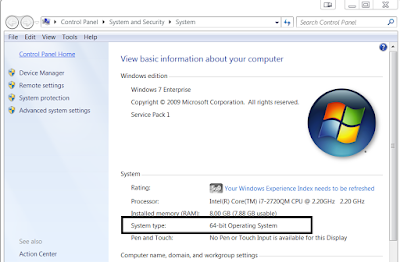
1. In Windows Go to Start - > My Computer - > Right click - > Click Properties - > See below box
| Windows 32 bit or 64 bit |
2. You can also open above box by - > Control Panel - > System and security - > System
Posted by
Amit Kumar at
23:35 No comments:
Email ThisBlogThis!Share to TwitterShare to FacebookShare to Pinterest
difference Between 32 Bit vs 64 Bit Operating Systems in Hindi
In Hindi - Understand The differences between 32-bit vs. 64-bit operating systems explained
बिट्स क्या होती है -
एक प्रोसेसर मे "नंबर ऑफ़ बिट्स" का मतलब डेटा टाइप का साइज होता है जो की प्रोसेसर हैंडल कर सकता है एवं जो रजिस्ट्री का साइज होता है | एक 64 bits प्रोसेसर 264 computational values, including memory addresses स्टोर कर सकता है जिसका मतलब ये 32 bits प्रोसेसर से 40 लाख गुना ज्यादा फिजिकल मेमोरी को एक्सेस कर सकता है |
ज्यादा बिट क्यों ?
More बिट्स का मतलब डेटा जयादा chunk मे प्रोसेस किया जा सकता है मीन्स मोरे accurately and fast | मोरे बिट्स का मतलब ये भी हो सकता है की हमारा सिस्टम फिजिकल मेमोरी की ज्यादा लोकेशंस को पॉइंट कर सकता है |
Differences between 32-bit vs. 64-bit -
32 bits सिस्टम केवल 4 GB मेमोरी को एक बार मे पॉइंट कर सकते है जबकि अब बहुत सारी नयी applications आ रही है जिनमे 4 GB से ज्यादा मेमोरी की जरुरत होती है तब हमे 64 बिट सिस्टम की जरुरत होती है |
64 bits प्रोसेसर per सेकंड कैलकुलेशन ज्यादा परफॉर्म कर सकते है जिससे कोई भी प्रोसेस करने की स्पीड 64 bits सिस्टम मे 32 बिट्स सिस्टम से जयदा होती है |
32-bit and 64-bit combinations and compatibility :- 64 bits OS को run करने के लिए 64 bits CPU का होना जरुरी है | 64 bits एप्लीकेशन को रन होने के लिए 64 bits OS एवं 64 bits CPU का होना जरुरी है |
Posted by Amit Kumar at
23:20 No comments:
Email ThisBlogThis!Share to TwitterShare to FacebookShare to Pinterest
Labels: Difference Between, In Hindi
What is Nbtstat Command in Windows with Example
Understand Nbtstat Command in Windows with Example
Nbtstat कमांड NetBIOS name resolution के प्रॉब्लम्स को troubleshoot करने के लिए use करते है |
There are several commands involved with Nbtstat that allows several options such as: local cache lookup, WINS server query, broadcast, LMHOSTS lookup, Hosts lookup, and it is not for DNS server query.
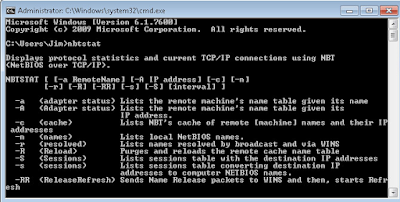
Nbtstat Syntax: nbtstat [-a RemoteName] [-A IPAddress] [-c] [-n] [-r] [-R] [-RR] [-s] [-S] [Interval]
| Nbtstat Command |
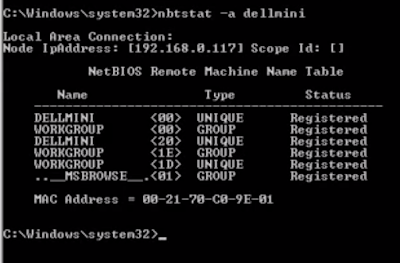
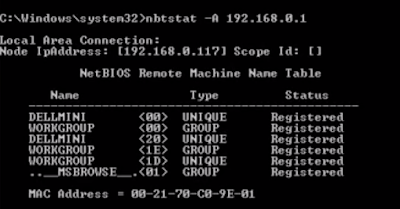
nbtstat - a < name > command performs a NetBIOS adapter status command on the computer name specified by < name> . The adapter status command returns the local NetBIOS name table for that computer as well as the MAC address of the adapter card.
The nbtstat -A < IP address > command performs the same function using a target IP address rather than a name.
| nbtstat -a command |
| nbtstat -A command |
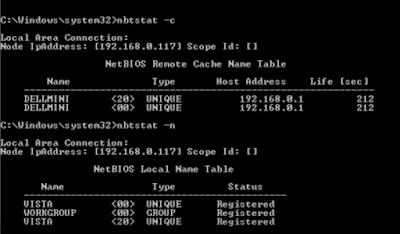
nbtstat -c: displays the contents of the NetBIOS name cache, the table of NetBIOS names and their resolved IP addresses.
nbtstat -n: displays the names that have been registered locally on the system.
| nbtstat -c -n command |
nbtstat -r: displays the count of all NetBIOS names resolved by broadcast and querying a WINS server.
nbtstat -R: purges and reloads the remote cache name table.
nbtstat -RR: sends name release packets to WINs and then starts Refresh.
nbtstat -s: lists the current NetBIOS sessions and their status, including statistics.
nbtstat -S: lists sessions table with the destination IP addresses.
Posted by Amit Kumar at
16:13 No comments:
Email ThisBlogThis!Share to TwitterShare to FacebookShare to Pinterest
What is Windows Internet Name Service (WINS) in Hindi
In Hindi - What is WINS Server in Windows -
WINS (Windows Internet Name Service) definition
Windows Internet Name Service (WINS) computer name registration and resolution service है जो की computer NetBIOS नाम को IP एड्रेस पर मैप करती है | जब WINS सर्वर को windows network मे deploy किया जाता है तो windows network users, नेटवर्क रिसोर्सेज को नाम से access कर सकते एवं IP एड्रेस याद रखने की जरुरत नहीं होती|
WINS एवं DNS दोनों TCP/IP network मे Name रेसोलुशन सर्विस होती है| WINS NetBIOS namespace मे Name resolve करती है जबकि DNS DNS domain namespace मे Name resolve करती है| WINS मुख्यः रूप से ओल्ड windows एवं उन applications को support करती है जो की NetBIOS use करती है | Windows 2000, Windows XP, and Windows Server 2003 use DNS names in addition to NetBIOS names.
Environments that include some computers that use NetBIOS names and other computers that use domain names must include both WINS servers and DNS. विंडोज नेटवर्क मे अगर ओल्ड विंडोज versions के machines एवं सर्वर है जो की DNS को सपोर्ट नहीं करते या फिर नेटबीओस नाम रेसोलुशन use करते है तो आप WINS सर्वर को नहीं हटा सकते क्यों की फिर वो machines या NetBIOS पर डिपेंडेंट एप्लीकेशन will not resolve Name |
Now in windows 2012 and Windows 2012 R2 -
WINS will also be required if you have any legacy applications still running that have a dependency on NetBIOS name resolution either because of the way the application is configured or how it has been coded. Finding such applications can be a challenge.
Posted by
Amit Kumar at
15:31 No comments:
Email ThisBlogThis!Share to TwitterShare to FacebookShare to Pinterest
Labels: In Hindi
Thursday, 1 October 2015
The proxy server isn't responding error message
Internet Data Card-wireless card internet problem-
The proxy server isn't responding error message-Connectivity issues-can ping out but no browsing
यहाँ पर जो error मैसेज बताया गया है वो बहुत सारी अलग अलग सिचुएशन मे आ सकता है पर ये solution, specifically मेरी प्रॉब्लम के लिए है | अगर आप भी same प्रॉब्लम फेस करते है तो ये solution try कर सकते है |
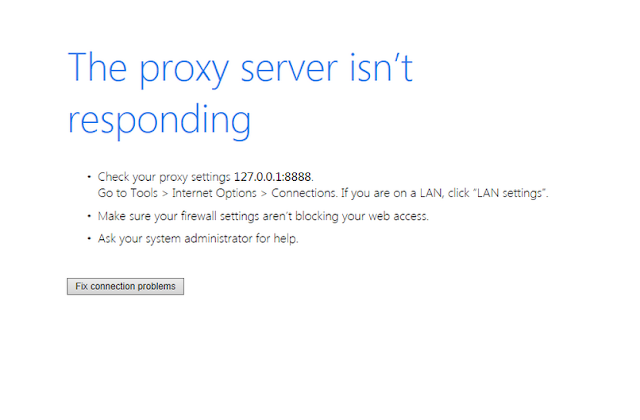
When i was using my internet data card ( Tata photon +), after connection i was able to ping websites so it means internet was working but when i was trying to open website in browsers - it was giving below error message -
| The Proxy Server isn't responding |
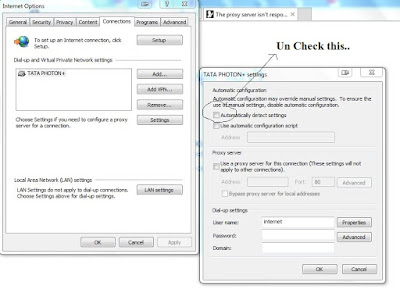
I checked all the settings but nothing worked -at last i did below change and internet start working, so try this - that might help you-
Go to Internet Options - Connection - Settings and Uptick "automatically detect settings" - > OK
| Go to Internet Options - Connection - Settings |
Posted by
Amit Kumar at
17:23 1 comment:
Email ThisBlogThis!Share to TwitterShare to FacebookShare to Pinterest
Subscribe to: Posts (Atom)